Key Takeaways
- Modify Windows Defender settings to optimize CPU usage.
- Reschedule virus scans for times when you’re not actively using your PC.
- Safely exclude trusted files and folders from antivirus scans.
- Ensure both Windows and its security updates are up to date for peak performance.
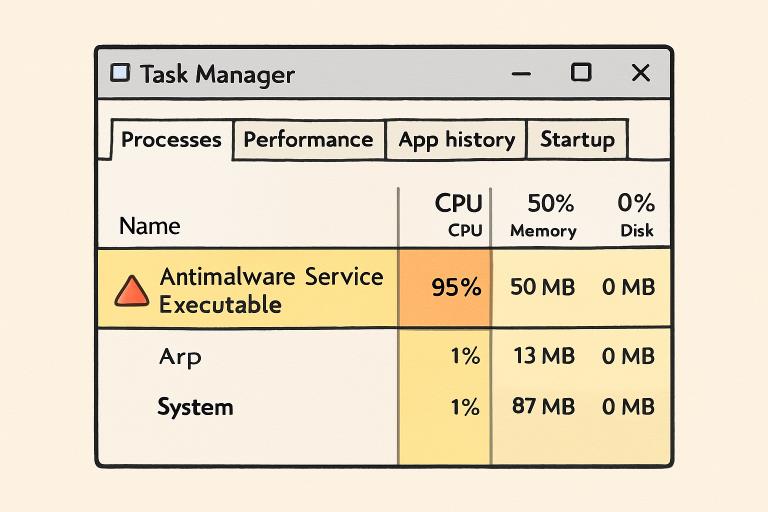
When your computer slows down or becomes unresponsive, one frequent culprit is the Antimalware Service Executable. This essential Windows Defender process, also known as MsMpEng.exe, is designed to protect your PC in real time but is sometimes notorious for consuming excessive CPU resources. If this issue is affecting your productivity or daily workflow, there are effective methods you can apply to resolve it. Follow these actionable steps to restore system performance without compromising your device’s security—or see this antimalware service executable fix for a quick overview.
Many users encounter high CPU usage from this Windows Defender component, leading to frustration and concerns over hardware longevity. By understanding the cause and targeting the underlying factors, you can take informed action. This article will walk you through the most reliable strategies to address this issue and avoid future slowdowns.
Optimizing the Antimalware Service Executable isn’t just a matter of tweaking settings—it’s about finding a balance between robust protection and peak computer performance. By adjusting your antivirus configuration, scheduling scans intelligently, and keeping your system updated, you can make a significant difference.
Security best practices also recommend reviewing which files are scanned, excluding items you fully trust, and using built-in Windows tools to track and manage resource use.
Understanding Antimalware Service Executable
The Antimalware Service Executable plays a critical role in providing real-time malware protection as part of Windows Defender. It continuously scans files, checks updates, and monitors potential threats. However, when system files or specific installed programs conflict, or if scanning is too frequent, users may notice spikes in resource consumption that slow the entire system.
For businesses or individuals relying on multiple devices, Managed IT Services can help optimize system performance by configuring antivirus schedules, managing updates, and monitoring resource-intensive processes, such as the Antimalware Service Executable. This ensures security does not come at the expense of productivity.
This process’s high CPU usage is most evident during comprehensive style scans or when downloading large files, which are thoroughly inspected by default. Understanding its core function is key; the executable is not malware but a safeguard. Still, its impact on system resources can and should be managed for a smoother experience.
Adjusting Windows Defender Settings
Windows Defender’s default configuration prioritizes robust security, but you can customize settings to reduce CPU usage. Here’s how you can make effective adjustments:
- Open Windows Security from the Start menu.
- Go to “Virus & threat protection” and select “Manage settings.”
- Find “Real-time protection” and temporarily toggle it off, especially if you’re running large batch operations or installations.
Be cautious: real-time protection should only be off while you’re performing trusted activities and should always be re-enabled afterward.
Scheduling Scans During Off-Peak Hours
Frequent or overlapping malware scans can be the primary driver of high CPU usage, especially during busy periods. Scheduling scans for idle or low-activity times is a straightforward solution:
- Type “Task Scheduler” in the Start menu and launch the utility.
- Navigate to “Task Scheduler Library” > “Microsoft” > “Windows” > “Windows Defender.”
- Right-click on “Windows Defender Scheduled Scan” and choose “Properties.”
- Adjust timing in the “Triggers” tab to off-peak hours, such as late nights or early mornings.
This action ensures active scans don’t interfere with work or entertainment, minimizing disruption and system slowdowns.
Adding Exclusions to Windows Defender
Sometimes, Windows Defender can get stuck repeatedly scanning large, complex, or trusted files. By adding specific files, folders, or processes to the Defender exclusion list, you can reduce unnecessary workload and CPU spikes:
- Open Windows Security from the Start menu.
- Under “Virus & threat protection,” hit “Manage settings.”
- Scroll to “Exclusions” and click “Add or remove exclusions.”
- Select “Add an exclusion,” then choose the files or folders you trust and use often.
Only exclude items after verifying they are safe and not user-downloaded executables that may hide malware or adware.
Updating Windows and Windows Defender
Obsolete security software and outdated operating system files can cause process conflicts or bugs that increase CPU usage. Regular updates close vulnerabilities, improve efficiency, and resolve known performance issues:
- Open “Settings” and select “Update & Security.”
- Click “Check for updates” to apply system patches.
- While in Windows Security, select “Check for updates” under “Virus & threat protection updates.”
Staying updated ensures compatibility and swift background scanning, and Microsoft continually releases fixes to address performance irregularities.
Monitoring Resource Usage
Monitoring helps you spot when Antimalware Service Executable or any other process unexpectedly hogs CPU cycles:
- Use Ctrl + Shift + Esc to open Task Manager.
- Go to the “Processes” tab and sort by CPU usage to identify resource-heavy applications in real time.
- Keep an eye on recurring spikes even outside of regular scans—these could indicate underlying software conflicts or hidden malware.
Consistent monitoring provides early warning of emerging issues, enabling timely corrective measures.
Performing a Clean Boot
If CPU spikes persist even after these tweaks, background apps or conflicting startup programs may be the cause. A clean boot streamlines Windows to essential drivers and services, helping to pinpoint problematic software:
- Press Windows + R, type msconfig, and press Enter.
- In “System Configuration,” open the “Services” tab, check “Hide all Microsoft services,” and click “Disable all.”
- Open Task Manager, select the “Startup” tab, and disable all startup items.
- Restart your computer for changes to take effect.
If high CPU usage is resolved, reactivate services and programs individually to determine the root cause.
Conclusion
Dealing with high CPU usage from the Antimalware Service Executable can be bothersome, but the right strategies will help you achieve fast, reliable, and SECURE computing. By adjusting Windows Defender’s settings, scheduling off-hours scans, carefully managing exclusions, keeping your operating system up to date, and monitoring resource consumption, you’ll reduce the process’s impact without sacrificing safety. For a detailed step-by-step guide on stopping Antimalware Service Executable from causing high CPU or disk usage, you can refer to this helpful resource: GeeksforGeeks guide.
Regularly reviewing which files and folders are scanned can also prevent unnecessary system slowdowns. Combining these adjustments with routine maintenance, such as disk cleanup and performance monitoring, ensures your PC runs smoothly. By taking proactive steps, you not only enhance performance but also maintain a secure computing environment.