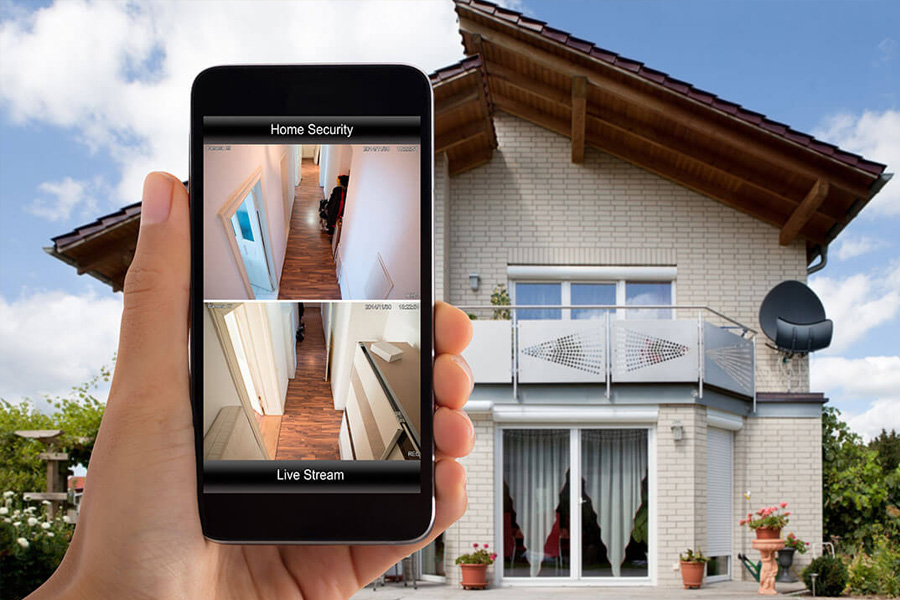
Picture your home at night: doors locked, lights timed, the dog asleep at the foot of the bed. Now picture your Wi‑Fi router blinking quietly in the corner, your smart doorbell streaming video to the cloud, the kids’ tablets auto‑connecting to whatever network has the strongest signal. That’s your real front door these days—the one most people forget to lock. The good news? You don’t need to be a tech wizard to make your digital space tougher, quieter, and safer. Here’s how to build simple, durable habits that keep intruders out and your peace of mind intact.
Lock Down Your Home Network
Your router is mission control and deserves star treatment. Replace the default admin username and password with something long, unique, and only you know. Automatic router firmware upgrades are your best friend since they correct security gaps before criminals can exploit them.
Set your Wi‑Fi to WPA3 (or WPA2 if your devices are older), and disable WPS—those “one‑button” setups are convenient for you and for attackers. Create a guest network for visitors and smart home gadgets, and keep your primary network for laptops and phones you trust. Even better, name your networks clearly (e.g., “Home‑Main,” “Home‑Guest,” “Home‑IoT”) so you know what belongs where.
Disable remote administration, UPnP, and universal sharing. For safe remote access, utilise your router’s app or a trusted DNS service instead of opening random ports to the internet. Enable DNS filtering to block known harmful sites network-wide, a simple, low-maintenance solution to prevent drive-by infection.
Two frequently overlooked basics: place the router centrally to keep strong signal where you live (and less signal bleeding outside), and keep the hardware off the floor and away from metal surfaces to reduce interference. A stable, well‑placed router is not just faster—it’s safer because you’re less tempted to install risky range extenders or leave odd settings lingering.
Harden Smart Devices and IoT Gear
Each smart speaker, doorbell, thermostat, and robot vacuum is a little computer with its own update schedule, login, and peculiarities. Act like guests who can only enter the living room, not your office. Connect them to the guest/IoT network, not your main one, and enable automatic updates when you set them up.
Change default credentials everywhere—apps, cameras, hubs—and turn off features you don’t need (remote viewing, voice purchasing, device‑to‑device discovery). For security cameras, enable two‑factor authentication on the account and use unique passwords per app. If your devices support it, prefer local recording over cloud storage, or at least review the cloud settings: who can access footage, how long it’s retained, and what happens if your subscription lapses.
Look for conspicuous software update policies, support timetables, and safety or cybersecurity labels while shopping. Get rid of unsupported devices before they become liabilities. A $25 “smart” plug without updates is a backdoor.
A simple ritual keeps things sane: maintain a quick list of every connected gadget (brand, model, app, and where it’s connected). When something misbehaves, you’ll know exactly where to check, what to reset, and which account to lock down.
Protect Your Accounts, Credentials, and Access Habits
Passwords and routines are where most people fail at security. Use a password manager—stop. It generates difficult passwords for each account and remembers them. Create a strong password for the manager and enable two-factor verification for your email account.
Multi‑factor authentication (MFA) is the seatbelt of your online life. Choose app‑based codes or push prompts over SMS when possible, and consider a hardware key for high‑value accounts like email, banking, and cloud storage. If you ever get a flurry of unexpected prompts (known as MFA fatigue), deny them all and immediately change your password.
Be picky about what you click. Phishing has evolved beyond clumsy emails—watch out for fake login pages, urgent delivery texts, QR codes posted in public, and support “agents” asking to screen‑share. When in doubt, navigate directly to the site or app yourself rather than using a link.
When travelling, avoid using public Wi-Fi. Use your phone’s hotspot or a reliable VPN to encrypt your traffic. Disable auto-join for open networks and require devices to request connection before joining new ones. On phones and laptops, enable encryption, screen locks, and “Find My” for rapid location, lock, or wipe if lost.
Backup, Monitor, and Maintain Your Digital Defenses
Cybersecurity isn’t a weekend project—it’s a rhythm. Updates first: set operating systems, browsers, and security software to auto‑update. Check your router monthly for firmware upgrades, and replace aging hardware every few years; modern routers bring better security by default.
Backups protect you. Make three copies of crucial data on two forms of storage, with one offline or in the cloud, using a simple 3‑2‑1 technique. Families may store laptop files locally, mirror them regularly on an external drive, and sync them to a cloud account with version history in case of ransomware or inadvertent erasure.
Monitor your network without obsessing. Monthly check your router’s app for linked devices and label them. Unrecognisable device? Pause, analyse, and adjust your Wi-Fi password if necessary. Enable parental or content controls for youngsters and as a hidden blocklist for harmful domains and ad-heavy sites.
Build a simple incident plan, written in plain language and saved where everyone can find it. If you suspect an account is compromised: disconnect from Wi‑Fi, power down questionable devices, change passwords from a trusted device, revoke app sessions, and turn on MFA. If you suspect malware: update security software, run a full scan, and restore clean data from backups rather than trying to salvage a corrupted system. Time matters; clarity matters more.
Finally, schedule a seasonal “digital tune‑up.” In one hour, you can review passwords, prune old accounts, remove apps you no longer use, verify backups, test a restore, and confirm that automatic updates are still on. It’s the cybersecurity equivalent of changing smoke alarm batteries—boring until the day it saves you.
FAQ
Do I really need WPA3 on my Wi‑Fi?
Yes if your router and devices support it; it’s stronger and future‑proof. If not, use WPA2‑AES and avoid older, weaker standards.
Should I hide my Wi‑Fi network name (SSID)?
Hiding the SSID doesn’t stop determined attackers and can complicate device setup. Use strong encryption and a solid password instead.
Are password managers safe?
They’re far safer than reusing passwords or saving them in notes. Your unique master passphrase and MFA are what protect the vault.
Is a VPN necessary at home?
Not usually if your home network is secured; it’s most useful on public or untrusted networks. At home, focus on router security and updates.
What’s the best way to back up family photos?
Use a cloud service with automatic upload and version history plus an occasional offline copy to an external drive. That gives you convenience and resilience.
How can I tell if my router’s been compromised?
Watch for unknown devices, settings you didn’t change, sluggishness, or DNS tweaks you didn’t make. If suspicious, factory‑reset, update firmware, and set new passwords.
Do smart cameras create privacy risks?
Yes if poorly configured; use strong, unique passwords, MFA, limited sharing, and only enable remote access when necessary. Keep them on a separate network segment.
What is MFA fatigue and how do I avoid it?
It’s a tactic where attackers spam you with login prompts hoping you’ll approve one. Deny unexpected prompts, change your password, and consider number‑matching or hardware keys.
Should Mac or iPhone users bother with antivirus?
Keep auto‑updates on and practice safe browsing; built‑in protections are strong. If you sideload software or share files widely, a reputable security tool can add another layer.
Is using a single Wi‑Fi for everything really that bad?
It’s convenient but expands your risk surface; segmenting keeps smart devices from mingling with your most sensitive data. Even a simple guest network helps a lot.